
You need to setup your External Tool information associated with the Common Cartridge file before the resources can be launched in the Schoology course.
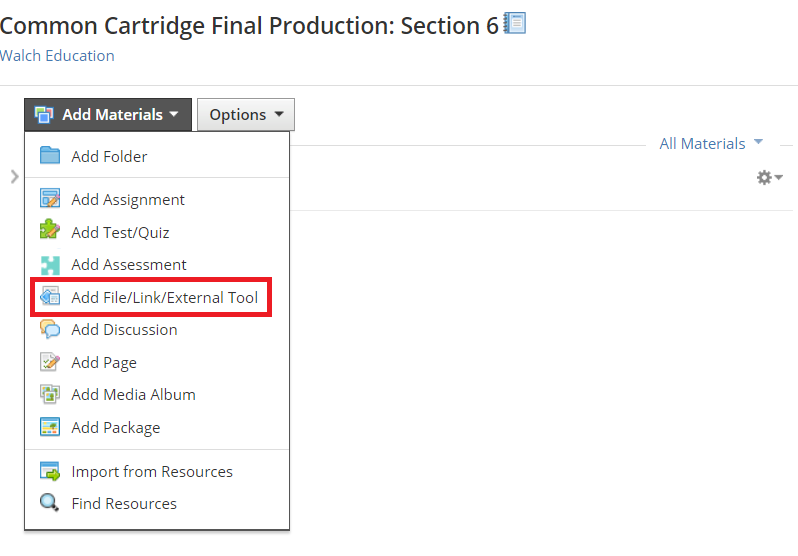
1) From the course where you imported the common cartridge resources, click Add Materials and select Add File/Link/External Tool from the drop down.
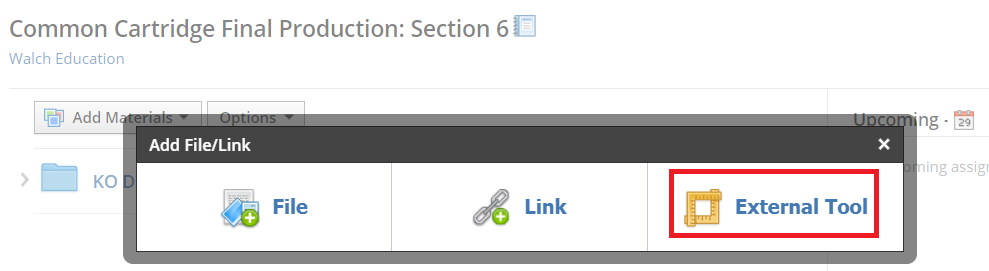
2) At the pop-up, click the External Tool option.
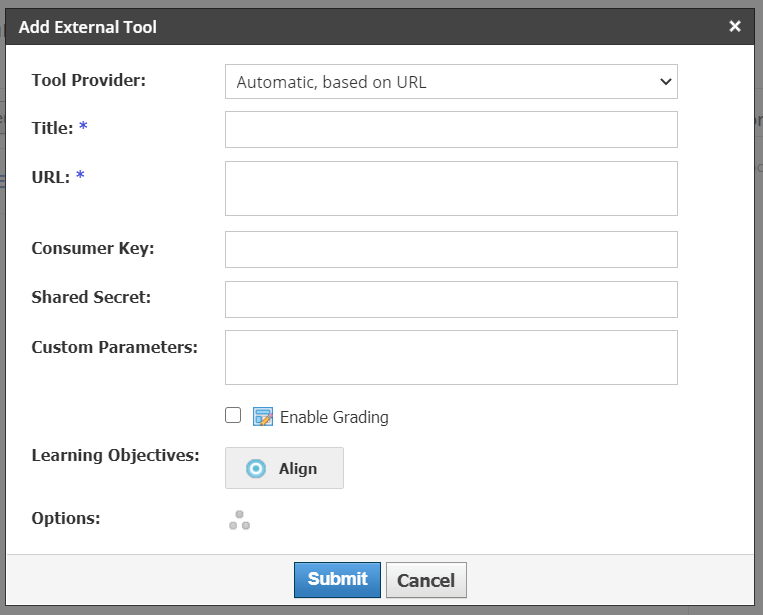
3) Enter a Title for the External Tool. This can be whatever name you want to give it. Copy the URL, Consumer Key and Shared Secret from the Curriculum Engine and click Submit. See How to get the LTI information for a Common Cartridge File help document for more information.
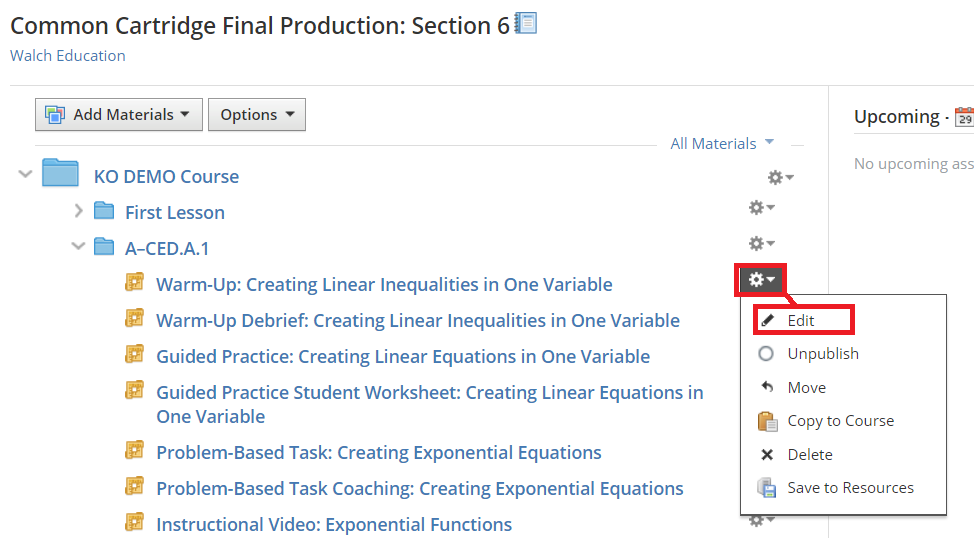
4) You need to update the individual tasks that you want to share with students and add the newly configured external tool to those tasks. Click the Gear icon next to the individual tasks and click Edit.
5) Select the External Tool that you configured above from the drop-down field next to Tool Provider and click Save Changes.
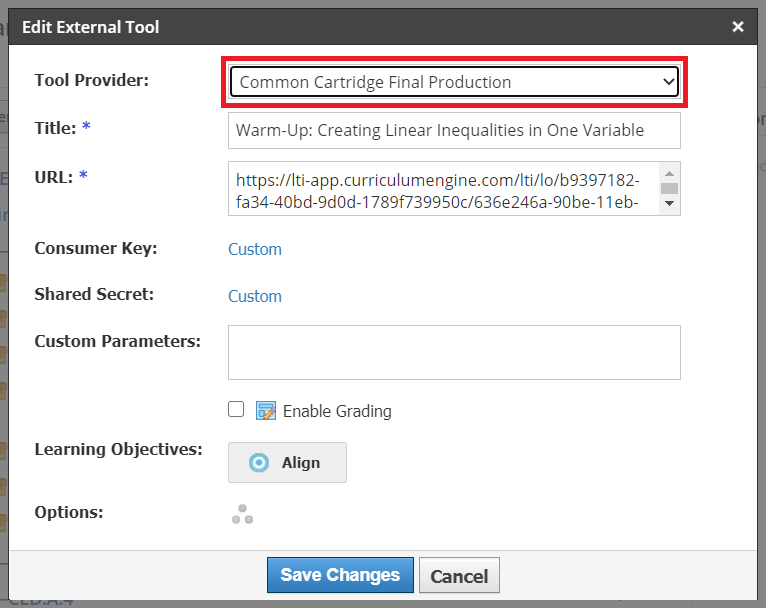
*NOTE* You will need to do this for each task that you want to share with students.
If you try to launch a task that has not been associated with the external tool, you will get the below warning message:
