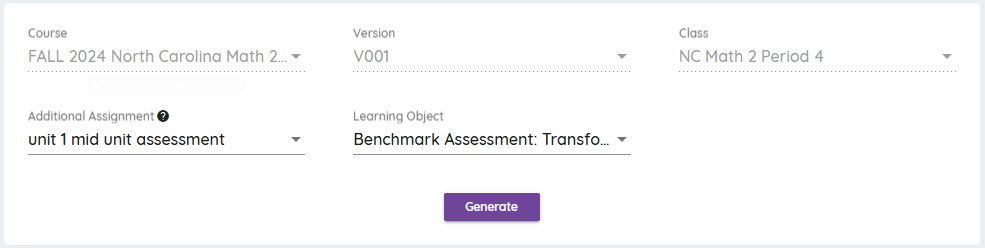
This help document shows you how to access the Gradebook and Item Analysis Reports from the class listing and the class details page.
Class Listing
To access the class listing, go to the Users --> Classes menu option.
**NOTE** The menu options are located at the top right of the screen.

Reports
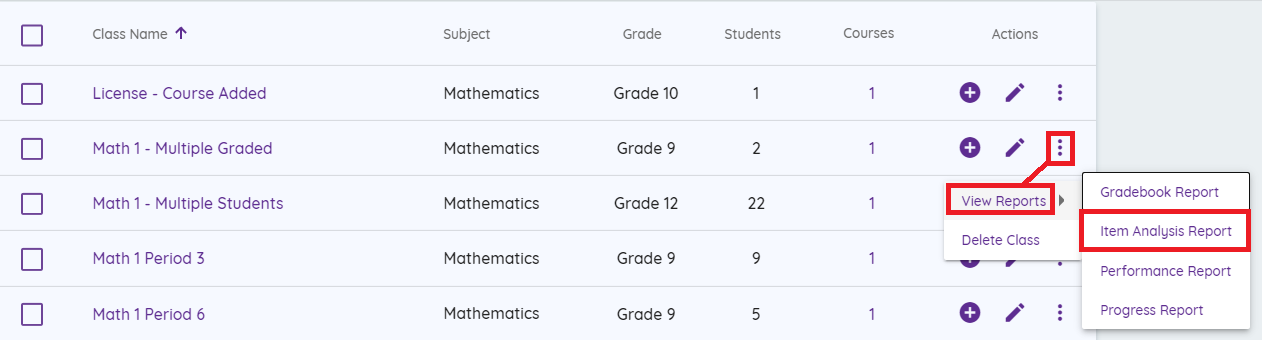
Below is the Class Listing display. Click the ellipsis menu under the actions column to the right of the class for which you want to run reports. Select the View Reports option, which will open up the reporting sub-menu. Click on Item Analysis Report.
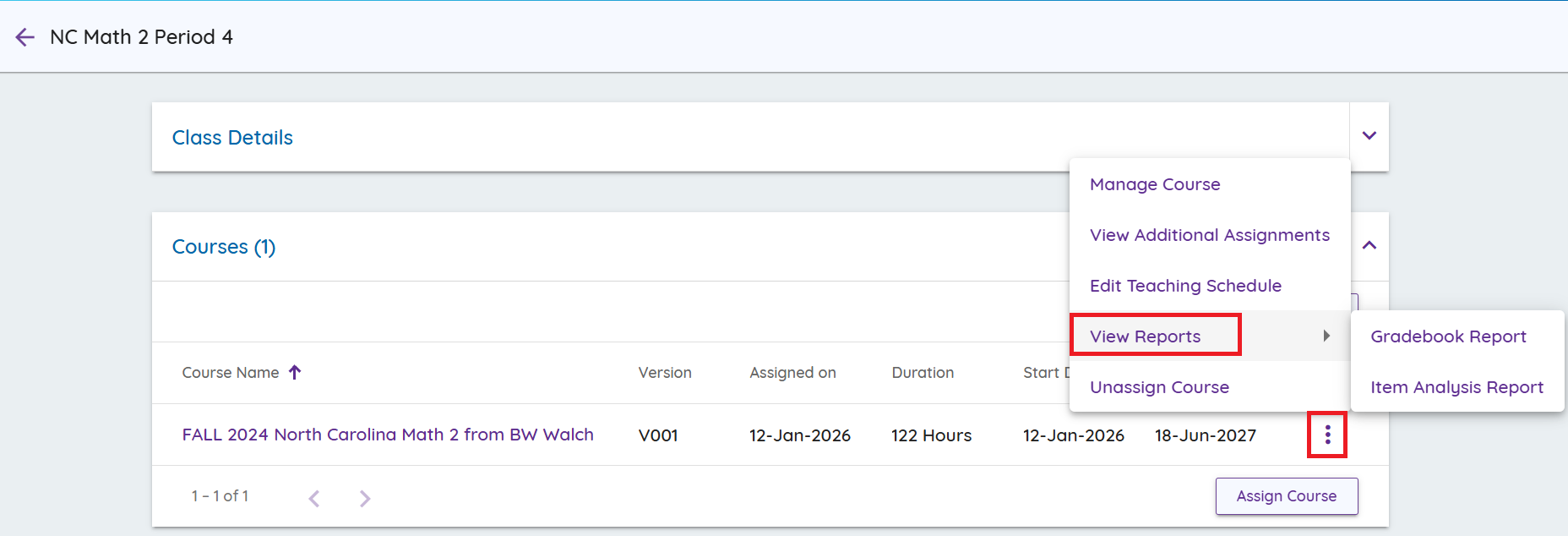
You can also access the View Reports dropdown under the Class Details page. From the list of classes above, click on the name of the class to view. Scroll down to the Courses section (displays the course assigned to the class). Click on the ellipsis menu under Actions then select View Reports to select the report to run.
Selecting the Item Analysis Report from here will pre-populate the report form. The filters completed will vary depending on the class. For example, if the class has more than one course associate with it, you will still need to select these fields fro the drop down fields in the Item Analysis Report.
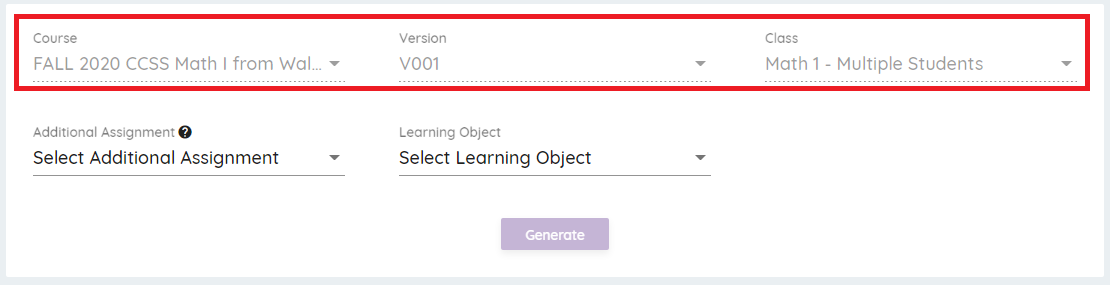
You can select the remaining fields from the drop down listed by each one.
To run the report for online interactive practice problems, leave Additional Assignment dropdown at the default "Select Additional Assignment" (ie, leave it blank). Then select the item in the Learning Object dropdown to run the report. Only learning objects that have been submitted by a student will be displayed in the dropdown.
One you enter your filter information, click Generate to run the report.

To run the report for online interactive assessments, select the name of the assignment in the "Additional Assignment" field and then select the item name in the Learning Object field. If the assessment type is set to Practice, only the last student submission score is displayed in the report. If no students have launched the assessment in the assignment, the Learning Object dropdown will be blank.
One you enter your filter information, click Generate to run the report.