This help document shows you the steps you need to complete when assigning a course to a class in the Curriculum Engine.
You must assign a course to a class in order to attach the course materials to the class. You can assign a course to a class either when you create a new class, or after the class has been created (or rostered from ClassLink or Clever).
When assigning a course, you need to complete three steps to finalize assigning the course. These steps are outlined below.
Assign Course: Details
Step 1: Select Course
Courses can be assigned individually or to multiple classes at once. Depending on which option you choose, once you select your course(s), click the Next button to move on to Step 2.
You can select the course(s) to assign to a class in a few ways. See below for associated help documents on assigning a course:
Class Admin | Assigning a course to a class that has already been created
Class Admin | Assigning a course to multiple classes at once
Step 2: Select Version
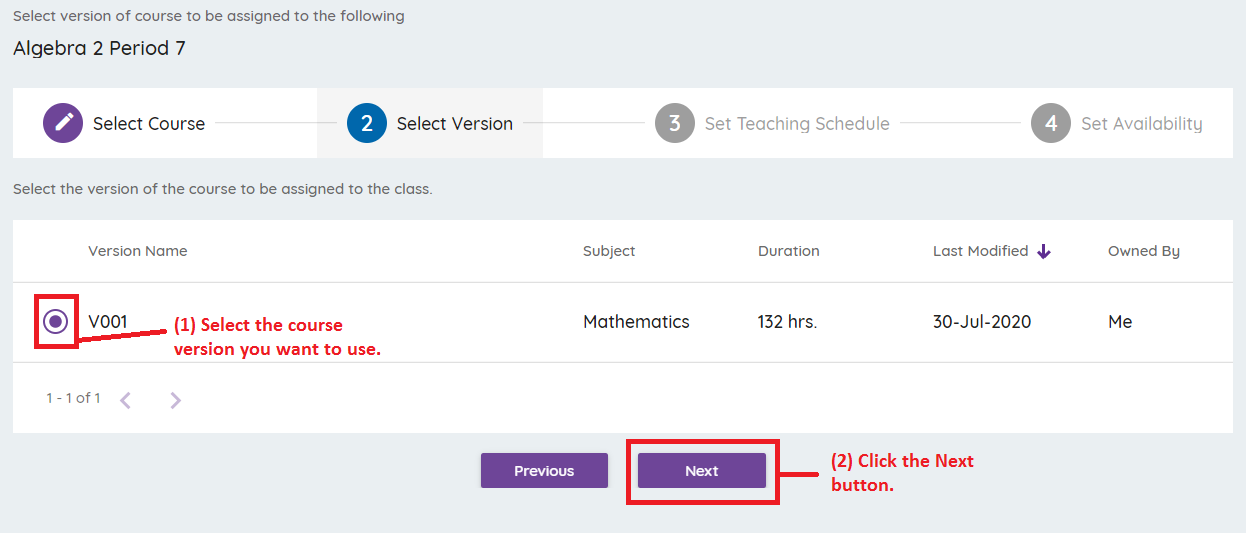
If there are multiple versions of the course you are assigning, in this step, you can select the version you want to use. Just select the circle to the left of the version you want to use and then click the Next button.
Step 3: Set Teaching Schedule
The course and lesson duration will be displayed. You can specify the pacing setting that you want to use by entering the following:
Duration of a Period: Enter the length of your class periods. This is only used for the calendar lesson view and to calculate an end date if you use all the learning objects in the course.
Days of the Week: Select all days of the week that you may wish to assign homework, not just the days that your class meets.
Start Date: Enter the date that the class starts or when you want students to have access to the course. NOTE: You cannot enter a date earlier than the date that you are assigning the course, so if the class is already started, you will need to default to the current date.
End Date: The end date will automatically default to June 30 of the following year, or nearest date to June 30 given days of the week that the class meets. You should manually enter an end date which is typically the last day of the semester. The end date indicates the last day that the course will be accessible to your students.
Last Lesson Date: This informational field will be calculated automatically based on the pacing setting, start date and days of the week selected. It indicates the estimated time that the course will come to a natural conclusion based on the available materials and pacing.
The End Date and Last Lesson Date do not need to match, but you will be prompted with an informational message based on whether the Last Lesson Date is earlier or later than the End Date.
End Date later than Last Lesson Date:
Entered End Date is later than the Last Lesson Date. There will be no lessons displayed on calendar after entered End Date and before Last Lesson Date but those dates will be enabled.
End Date earlier than Last Lesson Date:
Entered End Date is earlier than Last Lesson Date. The lessons that overflow will be combined on the last day.
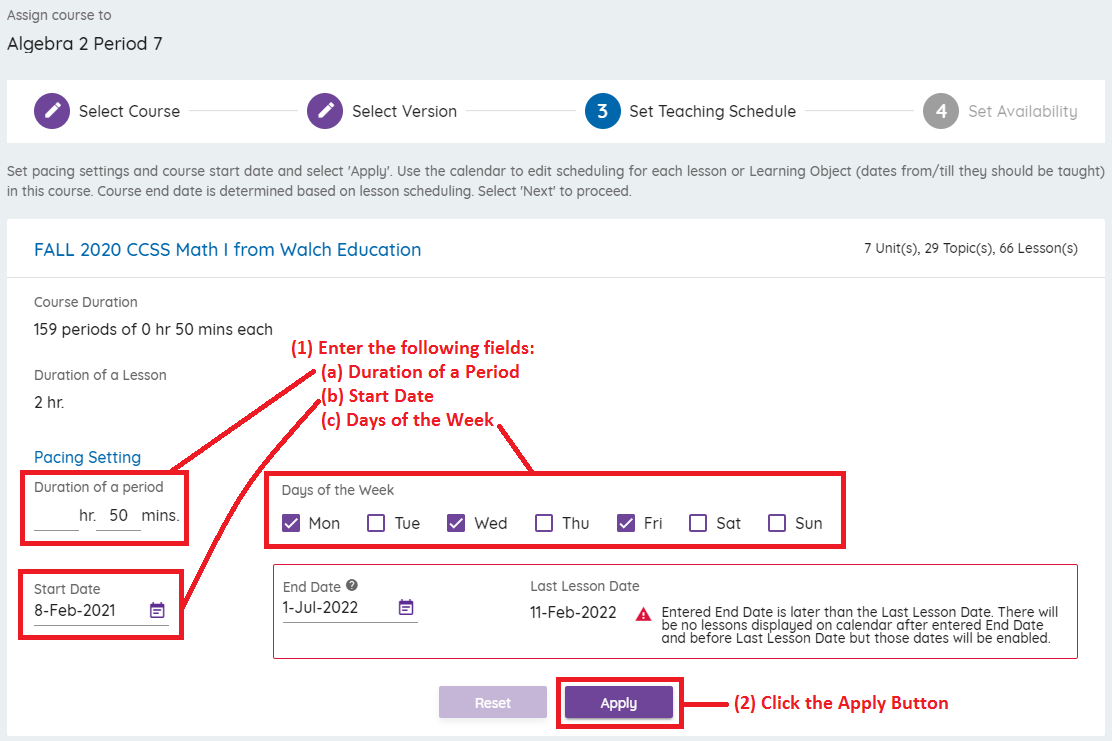
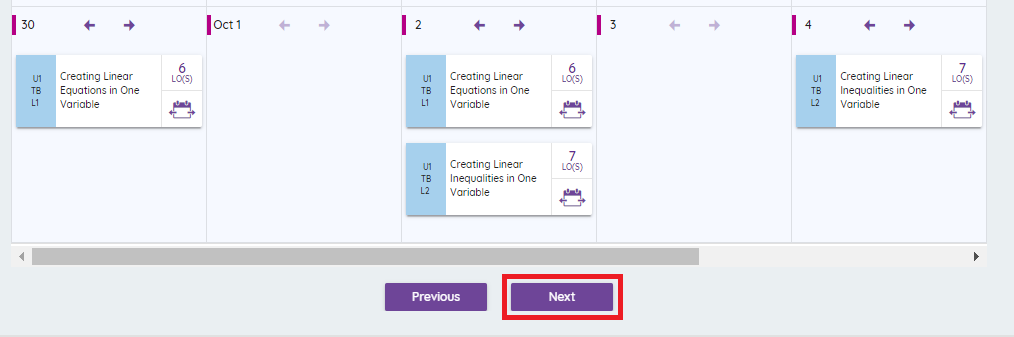
Click the Apply button to save your changes. An optional calendar will then open below displaying the scheduled lessons in the Curriculum Engine. This article will go over how to use the calendar lessons view.
Once you are done editing this step, click the Next button to move on to the last step.
Step 4: Set Availability
This will bring you to the final and optional updates to the course availability settings for Standard Learning Objects. Skip to step 5 if you wish to do this step later under Manage Course after the course has been assigned.
If you wish to set availability dates now for the entire class, you can expand to drill into each unit, topic, or lesson. The hierarchy of the course will depend on how the course was set up originally.
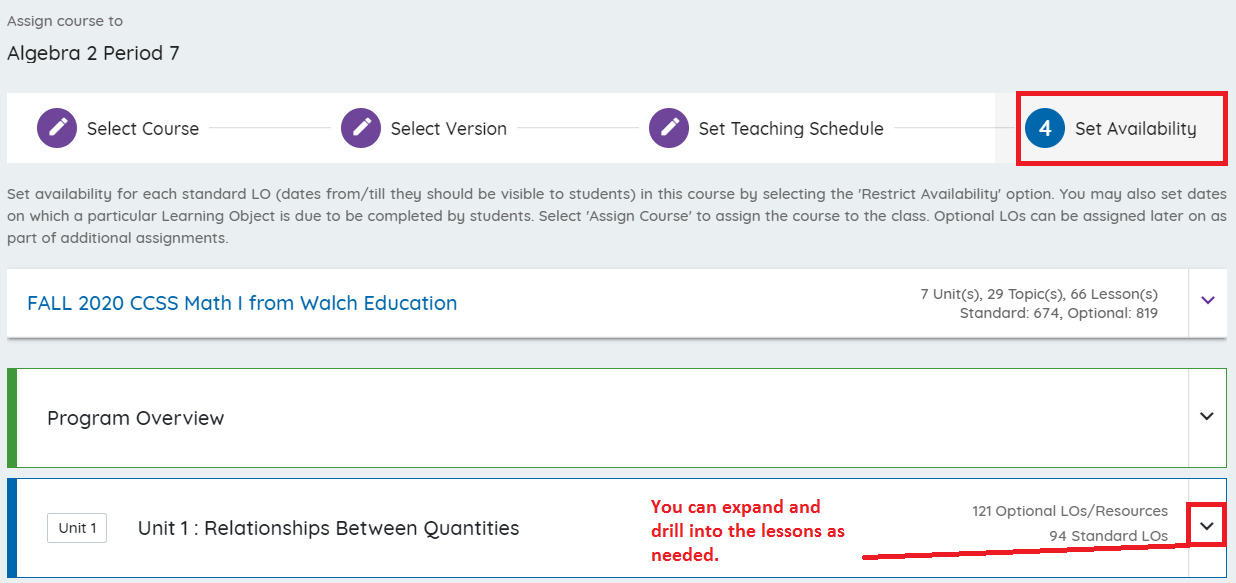
For Standard Learning Objects, which all students assigned to the class will see automatically, you can specify availability now. This can be done later. Optional Learning Objects need to be added to a class assignment after the course is assigned to the class.
- You can indicate the specific dates the learning object should be visible to students by entering the “Show From” and “Show Until” fields next to a Learning Object. You must first check the “Restrict Availability” box:

- You can also set the date on which a particular Learning Object is due to be completed by students.

Step 5: Assign Course
Once you have finished specifying the course start and end dates, days of the week for assignments, and clicked Apply, you can click the Assign Course button at the top right to assign the course to your class.
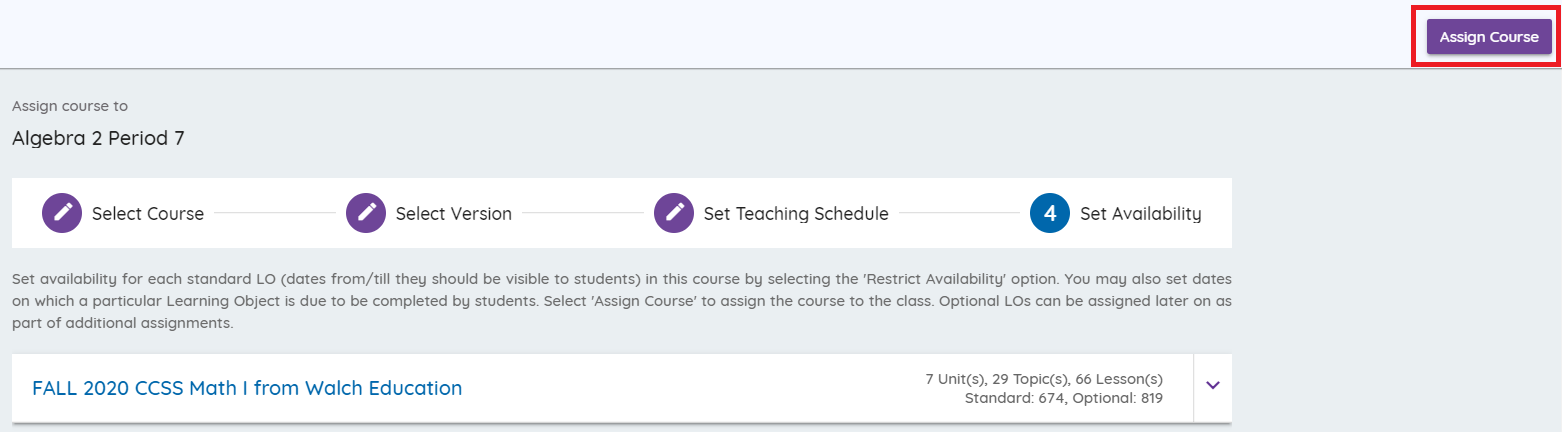
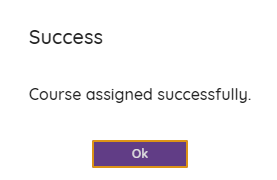
You will receive a prompt that your course has been assigned to the class: