
This help document shows you how to import a Curriculum Engine course via Common Cartridge into Schoology.
The common cartridge (.imscc file) is exported from the Curriculum Engine. Please see the the help document Export Thin Common Cartridge File which provides information on exporting this file from the platform.
Importing Common Cartridge into Schoology
1) Log into your Schoology account.
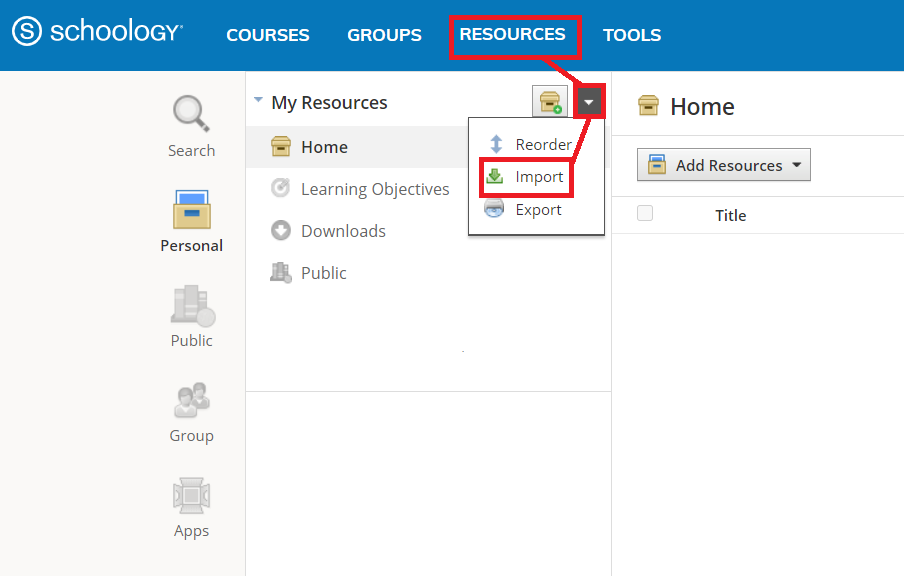
2) Select the Resources menu and then click Import from the Drop Down options.
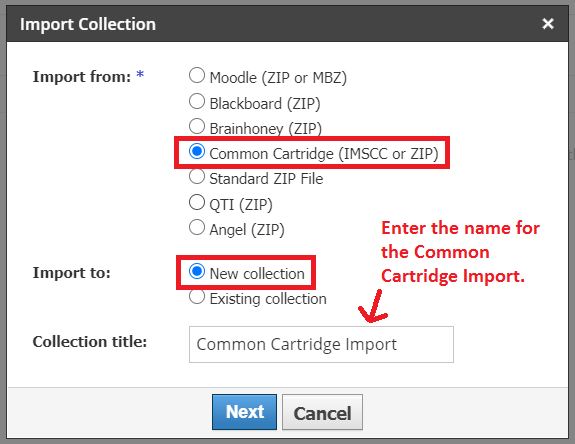
3) Select Common Cartridge (IMSCC or ZIP) from the “Import from:” section and New collection from the “Import to:” section. Give the collection a title. Select Next.
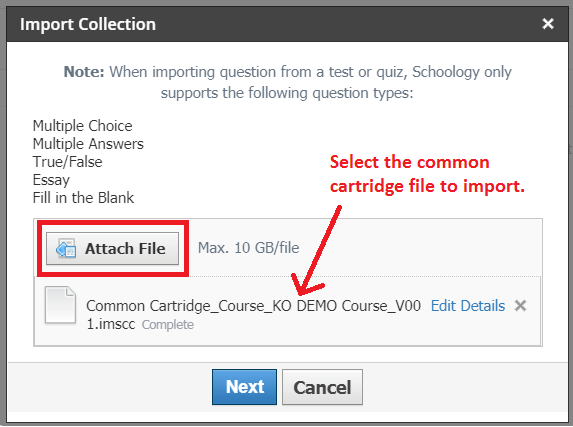
4) Select Attach File, to upload the common cartridge (IMSCC) file, and then select Next.
5) Your common cartridge file will now start uploading. Depending on the size of the file, the import process may take a little time.
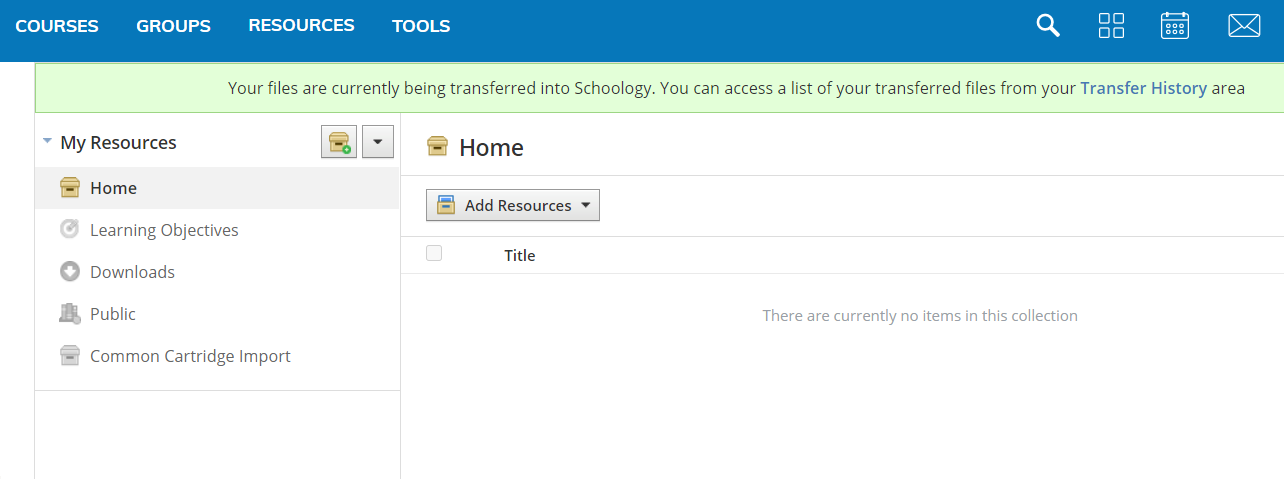
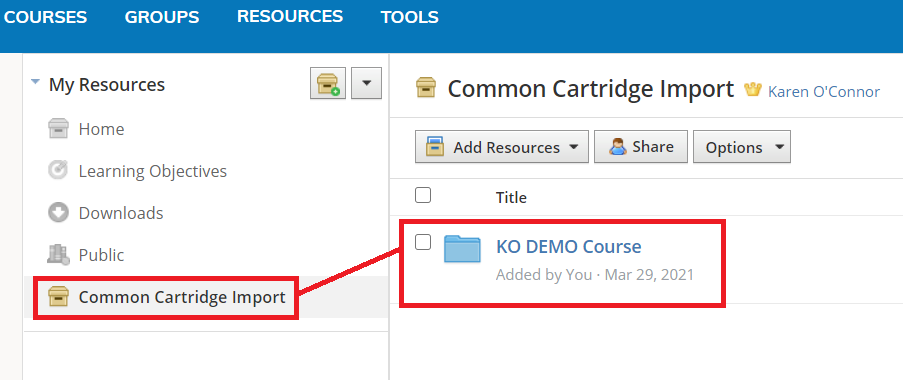
6) Once file is loaded you will be able to see a folder under My Resources with the imported materials.
You will need to configure the external tool for LTI 1.3 before adding materials from this resource into a course.